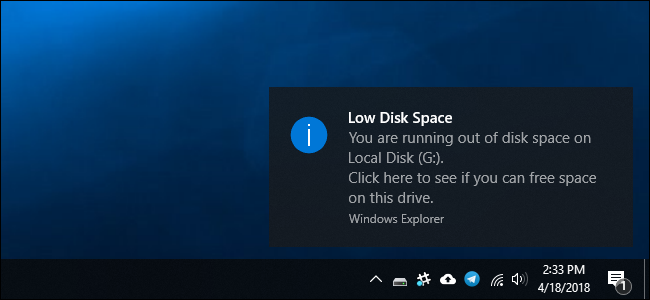
We've all been there. Your PC starts to feel sluggish, or you're staring at a "low storage" warning, and the first instinct is to reach for a third-party cleanup tool. I've done it more times than I'd like to admit. Install it, run a scan, watch a bunch of "issues" pop up, and hope it magically fixes everything.
But here's the thing. Windows has gotten a lot better at handling this stuff on its own. The tools built into the OS today already cover the things most cleanup apps claim to fix, like clearing storage, managing startup apps, and keeping your system running smoothly. In a lot of cases, those third-party tools aren't just unnecessary, they can add bloat, push ads, or make changes you don't actually need. At this point, using them is a risk you can skip entirely.
Storage Sense is the only cleanup tool most people actually need
Set it once and let Windows handle the cleanup for you
If your main reason for installing a cleanup app is to free up space, Windows already has a better solution built in. Storage Sense is designed to automatically clear out the stuff that actually clogs up your drive over time. That includes temporary files, system cache, items sitting in your Recycle Bin, and even old files in your Downloads folder if you want it to. It's basically replacing what most "disk cleaner" apps claim to do, just without the ads, upsells, or questionable scan results trying to scare you into clicking something.
The best part is you don't have to keep running it manually. Head to Settings > System > Storage and turn on Storage Sense. From there, you can choose how often it runs, what it cleans up, and how aggressive you want it to be. I usually set it to run automatically and clear out temporary files and anything that's been sitting in the Recycle Bin for a while, but leave Downloads alone. Once it's set, it just does its job in the background, which is exactly what a cleanup tool should've been doing all along.
Startup Apps is the fastest way to fix slow boot times
Turn off what you don't need and get your desktop back faster
A slow boot usually isn't a mystery. It's almost always too many apps trying to launch at the same time when Windows starts. Cloud sync tools, chat apps, game launchers, random utilities you forgot you installed. They all pile on, and suddenly your PC feels sluggish before you've even opened anything. This is exactly the kind of problem cleanup apps love to "fix," but Windows already gives you a clear, no-nonsense way to handle it.
Open Task Manager by pressing Ctrl + Shift + Esc, click the Startup tab, and you'll see a list of everything that launches when your PC boots. The "Startup impact" column is the giveaway. Anything marked High is a good place to start. Right-click and disable startup programs in Windows you don't need running the second your PC turns on. You're not uninstalling it, just telling it to stay out of the way until you actually need it. You can also get there through Settings > Apps > Startup if you prefer a simpler toggle view. Either way, trimming this list down is one of the quickest, most noticeable ways to speed up your PC without installing a single extra tool.
Task Manager shows you what's actually slowing down your PC
Look at CPU, memory, and disk usage to find the real problem
When your PC feels slow, it's easy to blame Windows or assume you need some kind of cleanup. Most of the time, it's much simpler than that. One app or process is using more resources than it should. That's exactly what Task Manager is built to show you. Instead of guessing or running a vague "scan," you can see in real time what's eating up your CPU, memory, or disk and deal with it directly.
Open Task Manager by pressing Ctrl + Shift + Esc and make sure you're on the Processes tab. If it looks too simple, click "More details" at the bottom. From there, click the CPU, Memory, or Disk column to sort by usage. The apps at the top are the ones putting the most strain on your system. If something looks out of place, like a browser tab using an unusual amount of memory or a background app constantly hitting your CPU, you've found your issue. You can right-click and end the task if needed, or just close the app normally. This is why Task Manager is so useful. It replaces the guesswork with real data, which is something cleanup apps don’t actually do better.
Be careful not to end critical system processes. Doing so can cause apps to crash or Windows to become unstable.
Uninstalling unused apps does more than most "PC optimizers"
Removing what you don't use is the simplest way to free up space and reduce background clutter
A lot of "PC optimizer" tools focus on cleaning up leftovers, but the bigger win is usually removing the apps you don't use anymore. Old games, trial software, manufacturer utilities, and random apps you installed once and forgot about all take up space and can still run background processes. That adds up over time, and no cleanup scan is going to fix it as effectively as just getting rid of the software in the first place.
Head to Settings > Apps > Installed apps (or Apps & Features on Windows 10) and sort by size or install date. You'll quickly spot what's taking up space or hasn't been touched in a while. If you don't recognize something, take a moment to look it up before removing it. You don't want to uninstall anything critical. Most of the time, the decision is obvious.
You can also use Winget if you prefer a faster, more direct way to uninstall apps from the command line, especially when you're cleaning up multiple programs at once. Either way, removing unused apps not only frees up storage, it cuts down on background activity and reduces the number of things competing for system resources, which is something most "optimization" tools don't actually solve.
Registry cleaners are the one thing you should avoid entirely
The "fixes" they promise aren't worth the risk
This is where a lot of cleanup apps cross the line. Registry cleaners in particular love to surface hundreds or even thousands of "issues" and present them like urgent problems. In reality, most of those entries are harmless leftovers that don't meaningfully impact performance. Windows is built to handle them just fine. The risk comes from removing the wrong thing. The registry is tied to how apps and system components function, so an aggressive cleanup can break software, remove needed settings, or cause instability that's a lot harder to undo than it was to create.
There's also the way these tools are packaged. Many push ads, bundle extra software, or try to upsell you into a "full fix" after a scary scan. Some run constantly in the background, which defeats the whole point of trying to speed up your PC. If you're trying to reduce friction and keep your system stable, this is one area where doing less is the smarter move. Windows doesn't need help cleaning its registry, and you don't need to take on the risk that comes with letting a third-party tool poke around in it.
You already have the tools, you just need to use them
You don't need another app running in the background to keep your PC in shape. Windows already handles the things most cleanup tools promise, and it does it without the bloat, ads, or risk. Once you start using tools like Storage Sense, Startup Apps, and Task Manager, it becomes pretty clear that those third-party "optimizers" aren't adding much value. In most cases, skipping them altogether is the simpler, safer, and faster way to keep your system running well.