
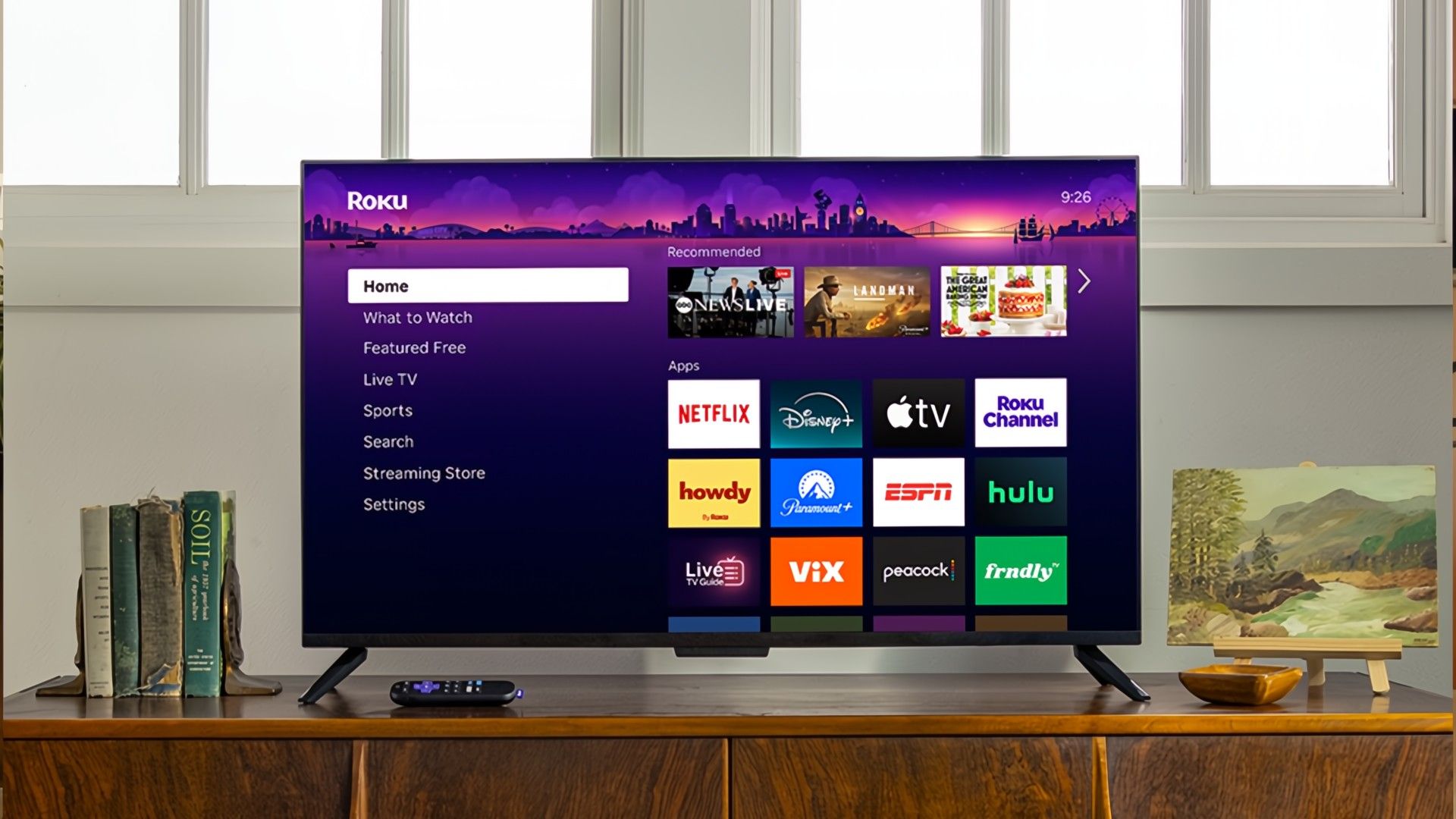
I've had Roku devices in my house for years, going all the way back to when it was just a little box sitting next to the TV. At this point, I've got several Roku TVs and a few sticks spread across different rooms, and for the most part, I've always used them the same way. Open an app, pick something to watch, and move on. It works, so I never really thought much about what else was there.
That changed recently when I replaced my living room TV with a $400 75-inch 4K Roku TV that I got on sale at my local wholesale club. While setting everything up, I spent more time digging through the menus and features I'd mostly ignored before. There are quite a few built-in tools that actually make Roku easier to use, more flexible, and in some cases, a lot more useful than just a streaming box. These are the ones I think most people overlook.
Use private listening so you can watch without disturbing anyone
It's one of Roku's most useful features, but it's easy to overlook
I'd heard of private listening on Roku before, but I never really gave it a shot until recently. It's surprisingly simple. You open the Roku mobile app, make sure you're connected to the right TV if you have more than one in the house, tap the headphones icon, and your TV audio gets routed straight to your phone. From there, you can use wired or Bluetooth headphones, and your TV speakers go silent. It feels like a small thing, but it completely changes how and when you can watch.
This is especially useful at night. If your partner is asleep next to you, you don't have to ride the volume button or rely on subtitles. You can watch at a normal volume through headphones while the room stays quiet. It's also great in smaller spaces where sound carries more than you'd like. In my experience, the audio has been perfectly in sync, but some people do report a slight delay depending on their Wi-Fi. It's also worth mentioning that while it works great with installed apps, it doesn't always work with content coming from HDMI devices like a media PC or game console. Still, for something built in and free, it's one of the most practical features Roku offers.
It's also worth noting that some older, higher-end Roku models came with a remote that has a built-in 3.5mm headphone jack. If you have one of those, you can just plug in a pair of wired headphones and private listening kicks in automatically, no app required. Sadly, Roku no longer includes headphone jacks on newer remotes with a few exceptions, so for most people, the mobile app is now the way to go.
Use your phone as a Roku remote when the real one disappears
It's not just a backup. In some ways it's better
Lost your Roku remote? No problem. Open the Roku mobile app, connect to your TV, and you're back up and running in seconds. As long as your phone is on the same Wi-Fi network as your Roku TV, it works just like a regular remote with navigation controls, playback buttons, and quick access to your apps. You should probably still find your remote at some point, but this is an easy fallback that keeps everything usable.
Coincidentally, losing my remote was the thing that pushed me to actually start exploring the app. If you’ve ever lost your Roku remote in the couch cushions, this is a lifesaver. You can trigger a sound from the app and your remote will start chiming until you find it. It only works on compatible remotes, but if yours supports it, it's one of those features you'll end up using more than you expect.
The app also adds voice search, even if your TV or remote doesn't have a microphone built in. You can tap the voice button and search for shows, launch apps, or control playback just by speaking. Not all of our Roku devices have voice-enabled remotes, so this has been an easy way to give every TV in the house voice search, which my wife uses all the time. It makes finding things a lot faster than typing everything out.
In some ways, the app is actually better. Typing with an on-screen keyboard is much faster than pecking through letters with a directional pad, and you don't have to deal with line-of-sight issues or dead batteries. It also ties directly into features like private listening, so everything is in one place. It's one of those things that starts as a backup and ends up being something you use all the time.
Turn your Roku into a free live TV hub
It's more like cable than most people realize
Most people turn on their Roku TV, jump straight into their favorite app, and that's the end of it. It's easy to miss that there are built-in live TV options that make Roku feel a lot more like traditional cable. Instead of picking something every time, you can flip through channels, see what's on, and just land on something. It's a different way to use your TV, and it's all right there.
I find myself going back to The Roku Channel pretty regularly. It offers a mix of free live channels and on-demand content, and it's surprisingly easy to just leave something on in the background. I also use Pluto TV, which leans even harder into that channel-surfing experience. On top of that, I've got local channels integrated through a digital antenna, which is especially useful for sporting events and when the internet goes down. Between all of that, Roku ends up feeling less like a simple streaming box and more like a full TV setup without the monthly bill.
If you're not tied to specific shows or live sports, there's enough free content here that you could realistically cut back or even drop some of your streaming subscriptions.
It's worth taking a closer look at what your Roku can do
Most of this stuff has been sitting there the whole time. It's just easy to overlook if you're used to jumping straight into your apps and calling it a day. Once you spend a few minutes poking around, you start to find small things that make a real difference in how you use your TV. None of it is complicated, and you don't need to buy anything extra to take advantage of it. And if you end up going down that rabbit hole, there are a few deeper features I didn't cover here that are worth exploring next.